How to find your organizational chart in Workday
What is an organizational chart? Also known as “org chart” or “organization chart,” you can use the org chart to see where you fit into your department/division and view who reports to whom, conveniently from Workday.

Showing the reporting structure visually through sup orgs
Employees are organized into supervisory organizations a.k.a “sup orgs.” Sup orgs group employees by team, department, division, or unit and stack on top of one another.
See a visual of the reporting structure for the entire FP&M division by viewing your organization chart in Workday.
Find your organization chart through your worker profile
All employees can navigate their organizational chart within their worker profile by logging into Workday. See how by viewing the sections below!
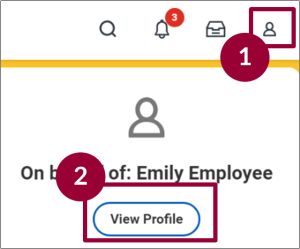
Step 1: Navigate to Worker Profile
Access your Organization Chart through the Worker Profile.
Log in to Workday via my.wisc.edu and clicking the Workday tile.
- From the Workday Home Page, click Profile (person icon) in the upper right corner.
- Click View Profile.
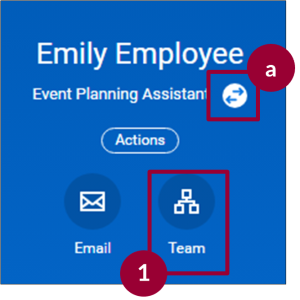
Step 2: View My Teams
- From the Worker Profile, click the Team icon.
a. Note for employees who have multiple jobs: to view the organization chart of the team associated with another job, click the Worker Profile Switch icon to toggle profiles. - Your profile will appear in the middle of the chart, with your supervisor above you. If you are a supervisor, your employees will appear below you on the chart.
- To navigate to a higher or lower level of the organization chart, click the up arrow at the top of the screen or the down arrow at the bottom of the screen, if available. Alternatively, scroll the page up or down.
- To access additional staff, click the Show More option.
See an example of the up and down arrow, how your org chart will look, and Show More.

Additional Resources
Need help? Find more resources on the Workday website.